
Use a local LLM server for meeting notes
Reki note can use an LLM server on your PC or another PC on the same LAN for meeting notes, transcript refinement, and chat. With a model running on your PC, text for these AI operations is processed on that PC. When you choose another PC, the text is sent to that server. Audio transcription and cloud sync have separate settings.
Last updated: October 8, 2026
Two ways to use a local LLM
Section titled “Two ways to use a local LLM”Local LLM downloads and runs a model inside Reki note. Local endpoint connects to an OpenAI-compatible server provided by LM Studio, Ollama, or llama-server. This guide covers the local endpoint option.
Standard and local processing modes
LM Studio on the same PC
Section titled “LM Studio on the same PC”The default server URL is:
http://127.0.0.1:1234- Install LM Studio and download a model that fits your PC’s memory.
- Load the model in the Developer tab and start the server. The default port is 1234.
- In Reki note settings, open Data processing and select Local endpoint.
- Enter the URL above, or use the server discovery button and choose a result from This PC.
- Refresh the model list and select a model.
- Run the connection test and confirm the configuration. The endpoint becomes active after a successful test.
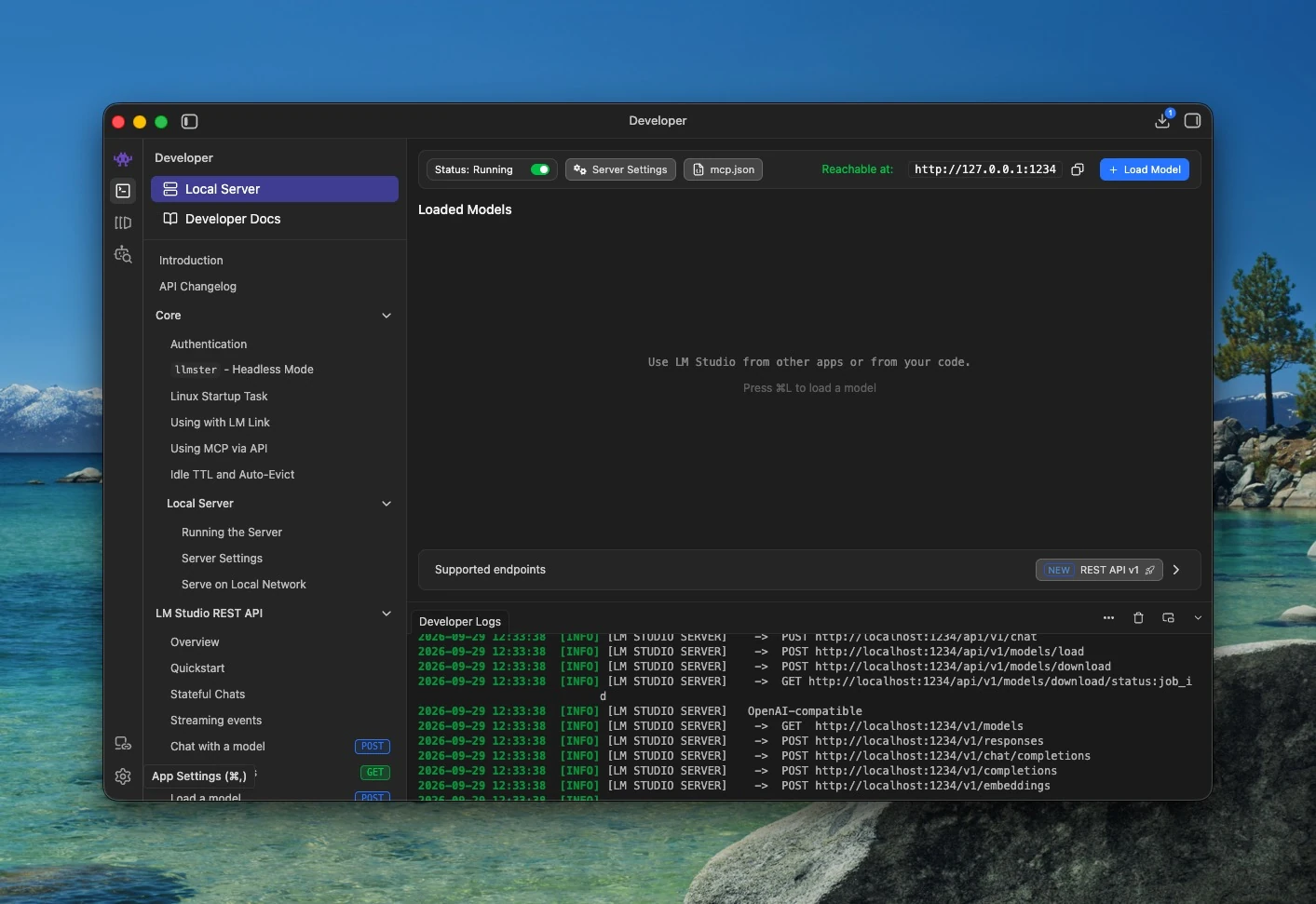
LM Studio screen and button names may vary by version.
Connect to another PC on your LAN
Section titled “Connect to another PC on your LAN”- Prepare a model and start the LLM server on the other PC.
- In LM Studio, enable Serve on Local Network. For Ollama or llama-server, see the settings below.
- Find that PC’s LAN IP address and server port. For example, enter
http://192.168.1.20:1234in Reki note. - Choose a LAN discovery result or enter the URL manually.
- Refresh the model list, select a model, and test and confirm the connection.
127.0.0.1 and localhost refer to the PC running Reki note, so use the other PC’s actual LAN address. 0.0.0.0 is a server listening setting, not a connection address.
Allow the required port and client devices through the server’s firewall. HTTP traffic is unencrypted. Use a server managed by you or your organization, following your network’s rules.
Discover local servers
Section titled “Discover local servers”Discovery searches this PC and the connected LAN together when you press the button. Choose a result after checking its URL and model, then run the connection test. Discovery does not load models or confirm settings.
Results may appear while scanning continues. On macOS, allow local network access when prompted.
LAN discovery covers private IPv4 addresses on connected Wi-Fi or Ethernet interfaces and ports 1234, 11434, and 8080. IPv6, other VLANs, and servers reached through Tailscale are outside its scope. Authentication or custom ports may prevent discovery; enter the URL manually instead. Discovery does not send an API key.
A model appearing in the list does not prove it can generate text. Complete the connection test.
Ollama and llama-server
Section titled “Ollama and llama-server”The server must provide OpenAI-compatible /v1/models and /v1/chat/completions endpoints. Reki note appends /v1 to the server URL automatically.
- Ollama on this PC: use
http://127.0.0.1:11434and prepare a locally running model. Choosing a cloud model sends processing to the cloud. - Ollama on your LAN: configure
OLLAMA_HOSTon the server PC to listen on a LAN-accessible address, then restart Ollama. Follow the official FAQ for your OS. - llama-server: use the configured port, such as
http://127.0.0.1:8080. For LAN access, set--hostto the server PC’s LAN address and configure--portand the model.
Authentication and proxies
Section titled “Authentication and proxies”If the server requires authentication, register its API key in Reki note’s connection settings. Check the URL first: the key is sent to the chosen server.
The Auto proxy setting connects directly to local destinations, including this PC and private LAN addresses, and uses OS proxy settings for other destinations. You can also choose to follow OS settings or disable proxy use, according to your network’s policy.
Troubleshooting
Section titled “Troubleshooting”- No discovery result: check server startup, LAN access, and macOS permissions. Enter the URL manually for authenticated servers or custom ports.
- Connection refused: check the IP, port, and listening address. A successful connection on the server itself does not prove another PC can connect.
- Timeout: check network access, firewall rules, model loading, and server load.
- Authentication denied: check the server’s authentication settings and API key.
- Empty model list: prepare a model and refresh. In LM Studio, also check the model’s loading status.
- Models appear but the test fails: confirm the selected model can generate text through the compatible chat API. The test sends a fixed arithmetic question, not meeting content.
- Slow responses or insufficient memory: try a smaller model and check concurrent requests and memory usage. For reasoning models, try turning thinking off.
Keep the server PC awake and the server running during use. If its LAN IP changes, update the URL and test the connection again.