
MCP 커넥터를 다시 연결하기
ChatGPT or Claude may still use an older tool list after Reki note adds a feature. Try refreshing the connector first. If refreshing is unavailable or does not update the list, delete the Reki connector and add it again. Verify the updated tools in a new conversation.
Last updated: October 5, 2026
Why new features can be missing even when connected
Section titled “Why new features can be missing even when connected”A tool list tells the AI what Reki note can do. It includes tool names, usage descriptions, and required inputs. The AI uses this information to decide which tool to call.
The Reki note server and the tool definitions saved by ChatGPT or Claude are updated separately. A new tool on the server may be unavailable to the AI until its saved list is refreshed. Existing searches can still work while a new feature is missing.
When to refresh
Section titled “When to refresh”-
A new Reki note feature is missing from the connector tool list.
-
The AI says a documented feature is unavailable.
-
Tool-name or input errors appear after an update, or you receive a notice to refresh the connection.
Not every app update requires reconnecting. Internal improvements that leave tool names, inputs, and usage unchanged usually work with the existing connection.
An AI response alone does not prove that the tool list is outdated. If the tool is listed but cannot be used, also check permissions and cloud sync.
ChatGPT: try Refresh first
Section titled “ChatGPT: try Refresh first”For a custom MCP connection added in developer mode, Refresh retrieves updated tool metadata. Deleting and re-adding is not always required. Connection settings may appear under Apps, Connectors, or Plugins, depending on the interface and plan. Workspace-managed connections may require an administrator to update them.
- Open connection management in ChatGPT and select your Reki connection.
- Choose Refresh.
- Check that the feature you need appears in the tool list.
- Start a new conversation and enable Reki from the tools menu.
- Ask to use the feature and verify the result.
OpenAI: refresh MCP connection metadata
Claude: try updating the tool list
Section titled “Claude: try updating the tool list”If the Reki connector menu offers Update tool list, try it first. Menu names and locations can vary. If it is unavailable or new tools still do not appear, delete and re-add the connector as described below.
- Open Customize or Settings > Connectors in Claude and select Reki.
- Open the more actions menu (⋮) and choose Update tool list if available.
- Check the list, then enable Reki in a new conversation to verify it works.
If refreshing does not work: delete and re-add
Section titled “If refreshing does not work: delete and re-add”If refreshing is unavailable or the old list remains, delete the Reki connector and add it again. The screenshot below shows Claude; use connection management for the equivalent steps in ChatGPT.
Disconnecting or disabling a tool in a conversation is different from deleting the connector and can leave saved settings in place. Choose Delete when following this procedure.
https://connect.rekinote.app/mcp
등록 화면에 아이콘 설정이 있는 경우 이 로고를 선택적으로 사용할 수 있습니다. 이미지를 저장한 후 아이콘으로 지정하면 커넥터 목록에서 Reki를 쉽게 찾을 수 있습니다. 아이콘 없이도 연결할 수 있습니다.
This removes the connection settings in the AI client, not your minutes or tasks in Reki note. You will need to authorize access again.
- Select Reki in the AI client connection settings.
- Choose Delete from the more actions menu (⋮) or equivalent control.
- Open the custom connector or MCP connection creation screen and enter Reki as the name.
- Enter https://connect.rekinote.app/mcp as the connection URL.
- Sign in to Reki note and authorize access as prompted.
- Check the updated tools, then enable Reki in a new conversation.
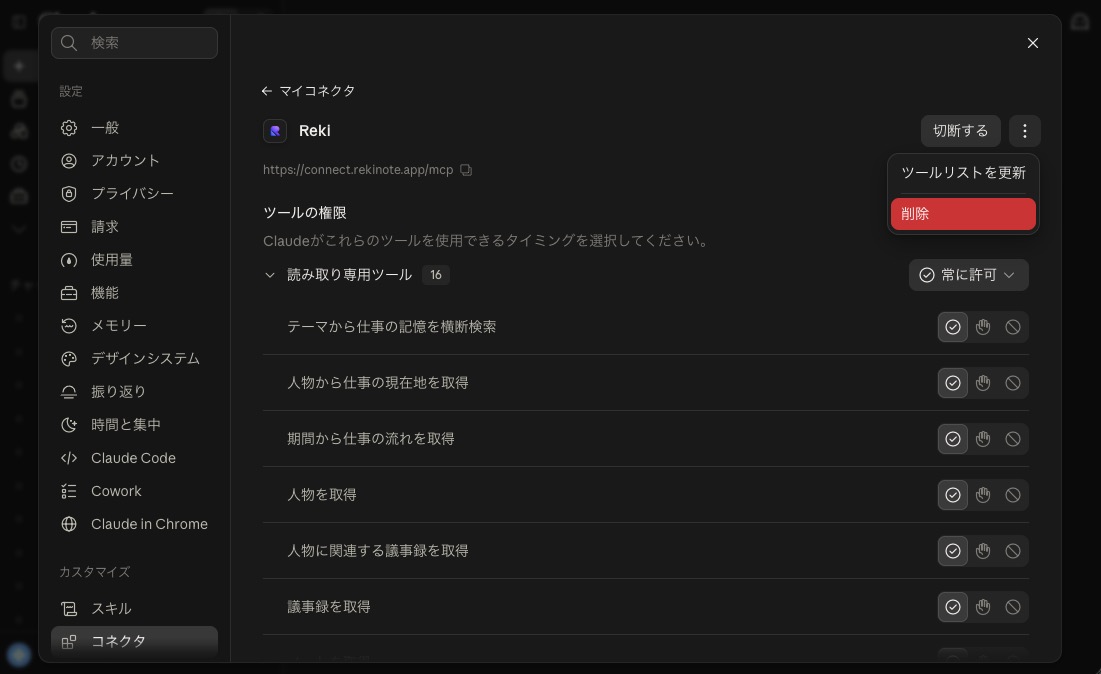
Claude example: try Update tool list first. If it does not update the tools, choose Delete and add the connector again. The layout can vary by version.
Does restarting an app update the tools?
Section titled “Does restarting an app update the tools?”Cloud MCP connects from ChatGPT or Claude to the Reki note server. Restarting Reki note on your computer does not necessarily update the tool list saved by the AI client. Use connection management to refresh it.
With local MCP, an AI client may reconnect automatically after the app restarts. Restoring a connection and retrieving updated tools are separate operations; automatic refresh depends on the client.
CLI integration uses a different workflow. See Work with AI agents for the CLI integration with Claude Code, Codex, and Cursor.
If a feature is still unavailable
Section titled “If a feature is still unavailable”-
Enable Reki in a new conversation. An older conversation may retain previous tool information.
-
Check that the tool itself is listed. A connected status alone does not confirm that the list was refreshed.
-
If data is missing, check your Reki note account, access permissions, and cloud sync.
-
If the issue persists, contact support with the AI client name, the feature you need, the error message, and the results of refreshing or re-adding.